In order for the QPPD applications to be visible in the Fiori Launchpad, the corresponding catalog must be assigned to the relevant roles via transaction PFCG. It does not matter whether you create a new role or add the catalog to an existing one. To cover the process completely, this example demonstrates how to create a new role.
Open transaction PFCG.
Enter a meaningful name for the role and create it using the "Single Role" button.
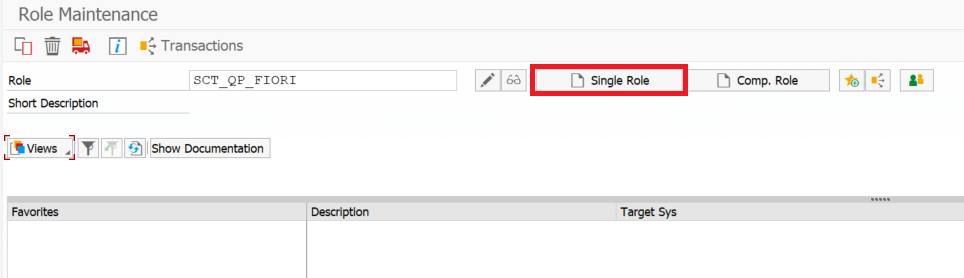
A new screen will open. First, save the role. Afterwards, it should look like this:
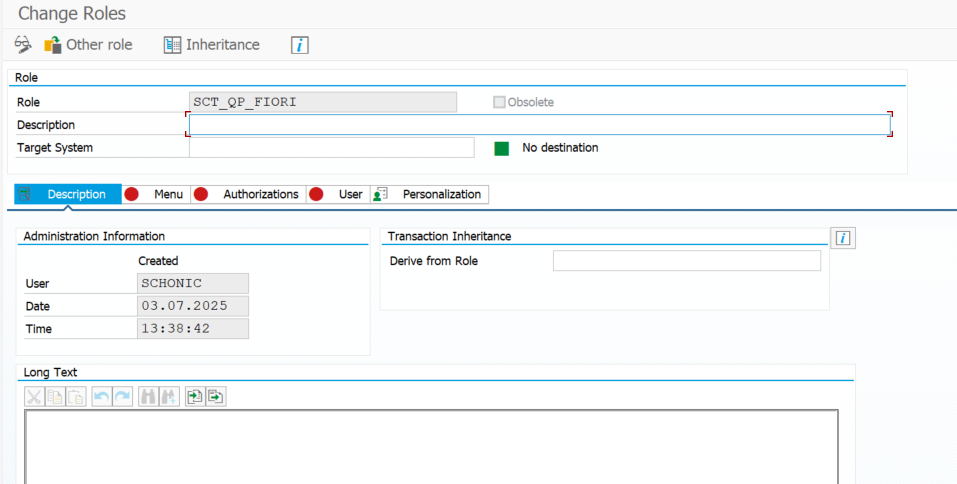
Go to the "Menu" tab. There you will find a "Transaction" button. Expand the corresponding submenu and select "SAP Fiori Launchpad → Launchpad Catalog".
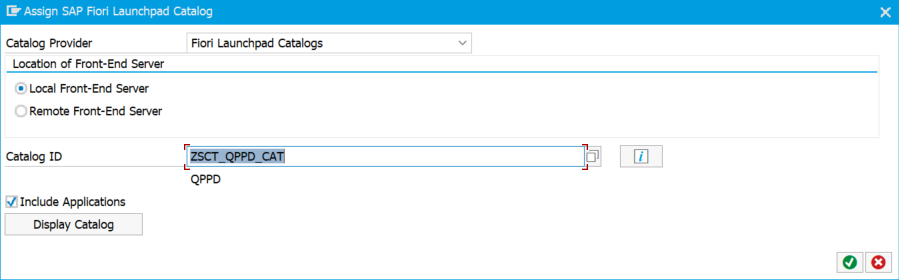
In the pop-up, the only field we are interested in is the Catalog ID. You can find the Catalog ID via the Launchpad Content Manager (/UI2/FLPM_CUST). Make sure the checkbox "Include Applications" is selected. Then confirm the pop-up.
A message such as "Warnings or errors exist" may appear, redirecting you to an analysis program. This message can be ignored — return to the role maintenance screen.
The role is now authorized to display the Secat QPPD catalog, including all contained applications. Under the "User" tab, you can now assign users who should have access to the catalog.